

Use the map editor.
The editor combines a map canvas, editing tools, a selection palette, and controls for saving and export.
Place your first terrain
- Create a map or open a saved map.
- Select Tile Stamp from the tool buttons.
- Choose a terrain tile from the palette.
- Click a hex to place the tile. Choose another tile to change terrain.
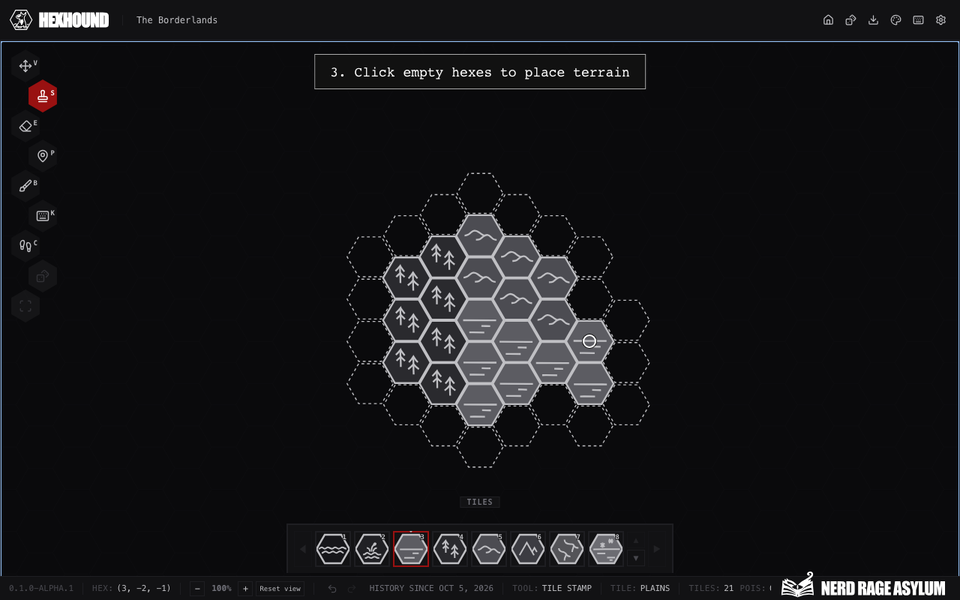
Select Tile Stamp, choose terrain, and place it on a hex.
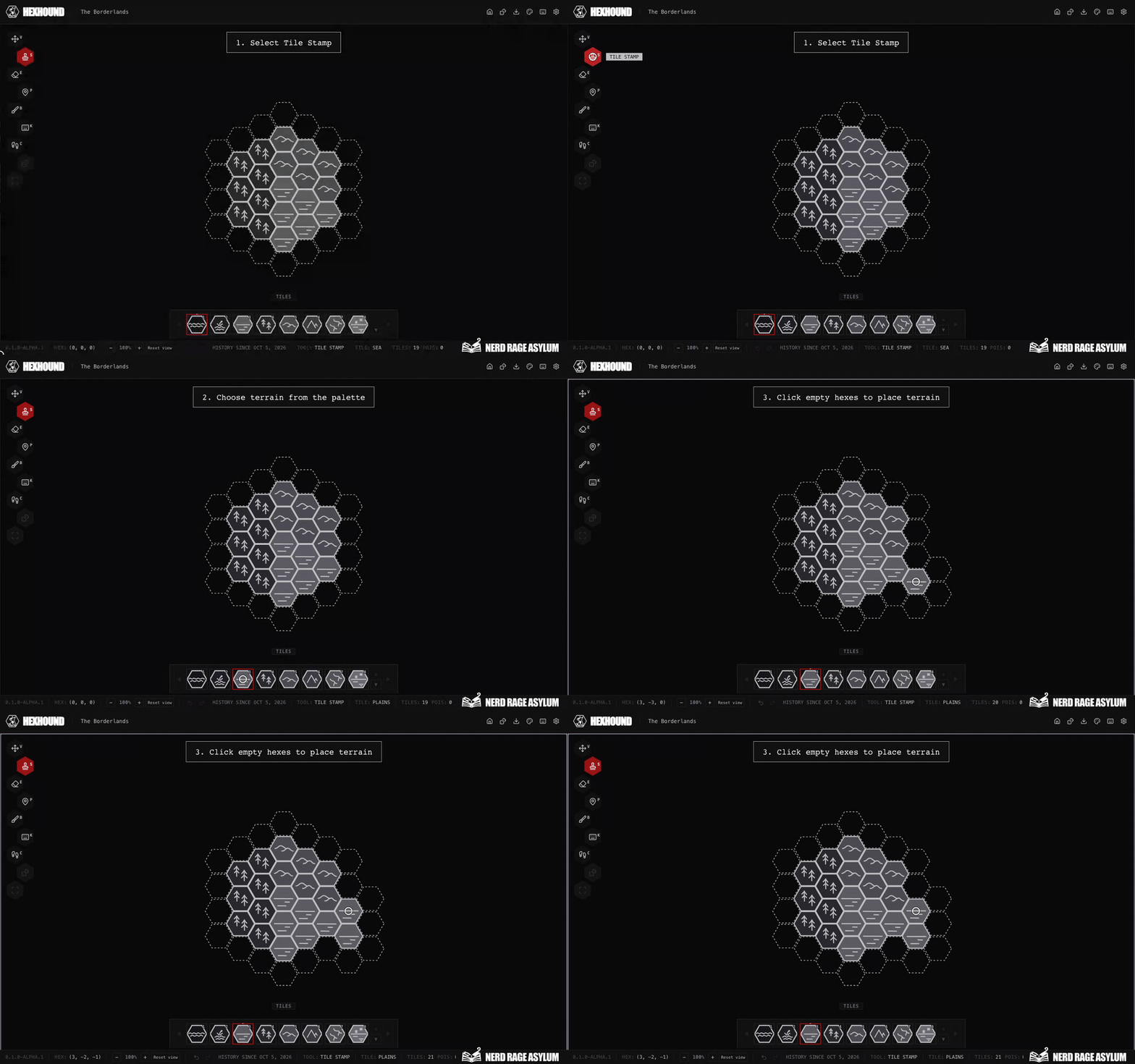
The palette appears for tools that need a selection. Previous page and Next page reveal more choices.
Move around the map
Select Move and drag the canvas to pan. Arrow keys also pan the view. Use = or Numpad + to zoom in, and - to zoom out.
Panning changes your view. It does not move terrain or the party.
Choose a tool
- Tile Stamp, Brush, and Eraser place, paint, or remove terrain.
- POI Tool adds a location marker to existing terrain.
- Roll and Explore generate terrain around a chosen hex.
- Crawl moves a party token across the map.
Roads draws paths, roads, and junctions. Rivers draws directed watercourses.
Use Toponyms to draw a Line label or name an existing tile, POI, road or river in Point mode.
Hover over a tool to see its name. Locked controls explain why the action is unavailable.
Edit with the keyboard
Select Keyboard Edit or press K. Move the cursor, select a tool with Tab, then press Enter to apply it.
Press Escape to leave the mode. The keyboard reference lists movement keys and mode-specific controls.
Save and continue
Changes save as you work. Check the editor's saving messages before leaving a map.
Use Undo, Redo, and saving recovery when you need to correct a change.
Use Generate map tiles for area generation, Settings for appearance, or Export map for a PNG image.