

Saving and undo
Map edits save as you work. Undo and Redo let you reverse actions and restore them.
Undo a map action
- Select Undo in the status bar, or press Command/Ctrl + Z.
- Repeat to step back through available actions.
- Select Redo, or press Command/Ctrl + Shift + Z, to restore an undone action.
A brush or eraser stroke counts as one action. Party moves, POI changes and river edits and road edits also use map history.
Autoexplore combines the move and generated terrain in one action. Redo restores the same terrain result.
Making a new edit after Undo replaces the available redo path.
Disabled Undo and Redo controls indicate that the action is currently unavailable. Pending saves can temporarily block Redo.
Understand the history baseline
Some maps show History since followed by a date in the status bar.
Undo starts from that saved baseline. Earlier records remain archived and cannot be reached through Undo.
Party token visibility saves with the map but stays separate from movement history. Undo and Redo preserve that visibility choice.
Check that edits save
- After an edit, watch for Saving pending edits above the editor controls. The message includes the pending count.
- Wait for the pending message to clear.
- If saving pauses, read the message before continuing.
Changes can appear on the canvas while their save is still pending.
Navigation within the app, including browser Back, waits for pending route and geographical name edits to save. A failed save keeps the map open so you can correct or retry it.
Delete name discards that name's unsaved draft and removes its saved name. Undo restores the saved name.
Live sharing shows changes to players after they save.
Recover from a save problem
- Read the editor's status message.
- If Retry saving appears, select it to retry pending edits.
- Wait for saving to finish. If the editor asks you to reopen, select Reopen map.
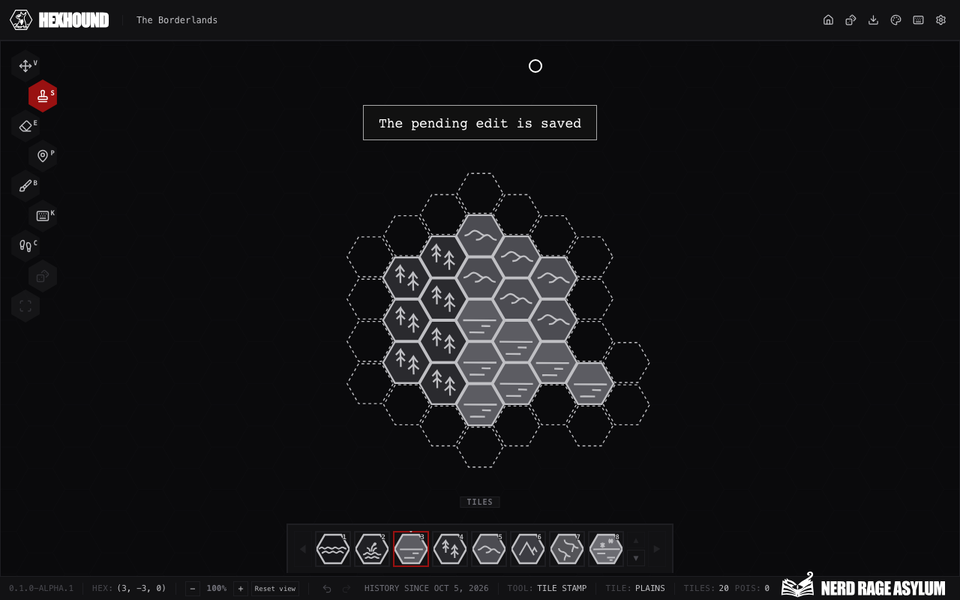
Select Retry saving and wait for the pending edits to save.
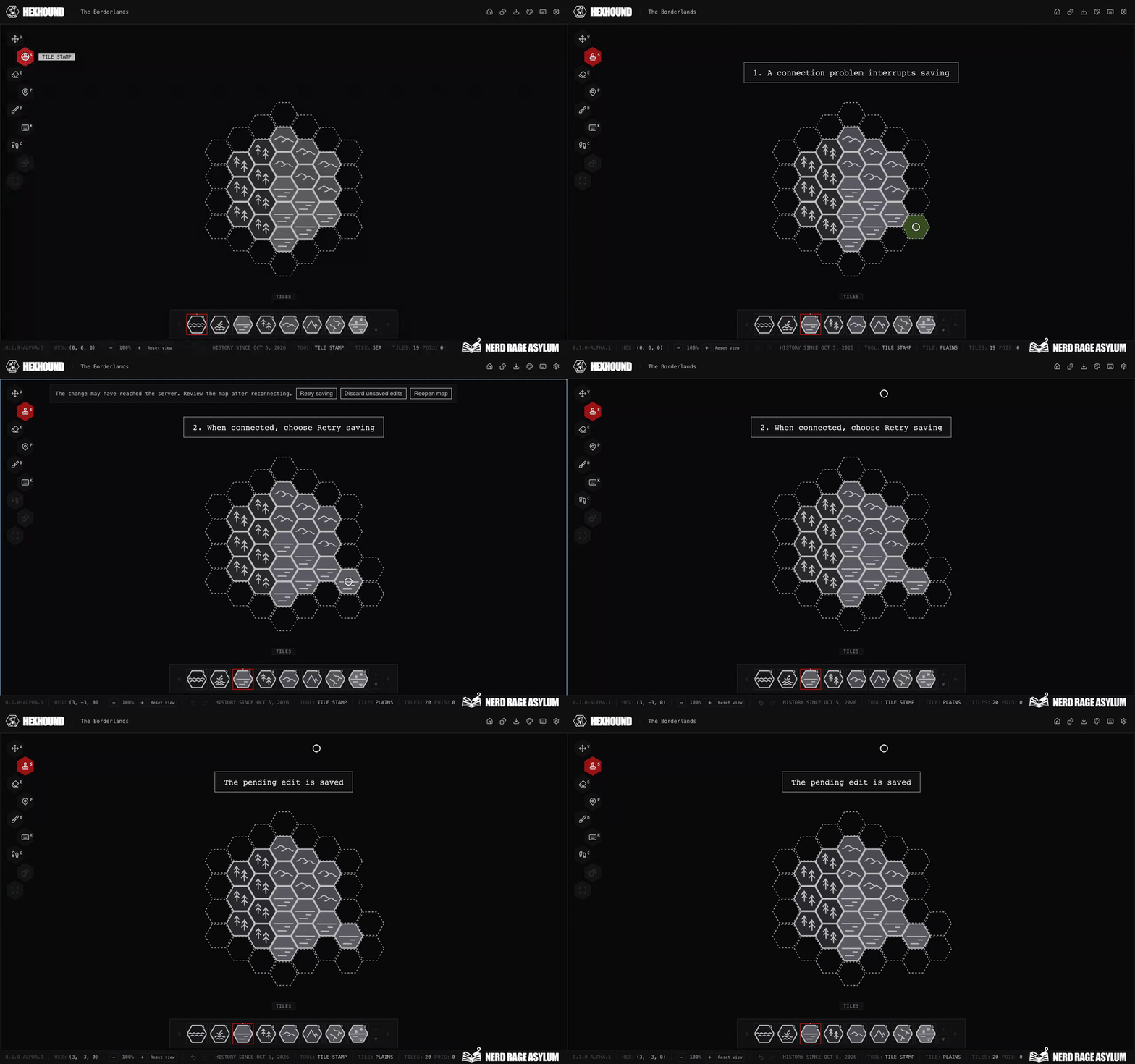
Discard unsaved edits removes local pending edits and reloads the saved map. Use it only when you accept losing those edits.
The confirmation explains that previously sent edits may already be saved. Discarding does not undo those saved changes.
If the editor shows Try editing, use it to attempt to resume editing.
If the problem continues, contact support with the exact status message and the action you attempted.
Continue working
Return to terrain editing or Crawl.
The keyboard reference lists shortcuts for each mode.