

Share a live map
Give your players a link to a saved map. Their view updates automatically when your changes save.
Recipients can view and pan without signing in. They cannot edit the map or move the party.
Before you start
Sign in with an enabled, verified account and open a map you own. Sharing supports paid Master Cartographer subscriptions, administrator access and gift access.
Administrator and gift accounts can share without a subscription. If you have none of these access types, Create link opens the upgrade dialog.
Review your map name and account display name before sharing. Both appear in the recipient view.
If Share saved map is unavailable, use PNG export or visit Support.
Create and send a link
- Wait for pending map edits to finish saving.
- Select Share saved map in the editor's top bar.
- Review the Recipient preview. It shows what your players can see.
- Select Create link.
- Select Copy link and send it to your players. Use Open recipient view to check it yourself.
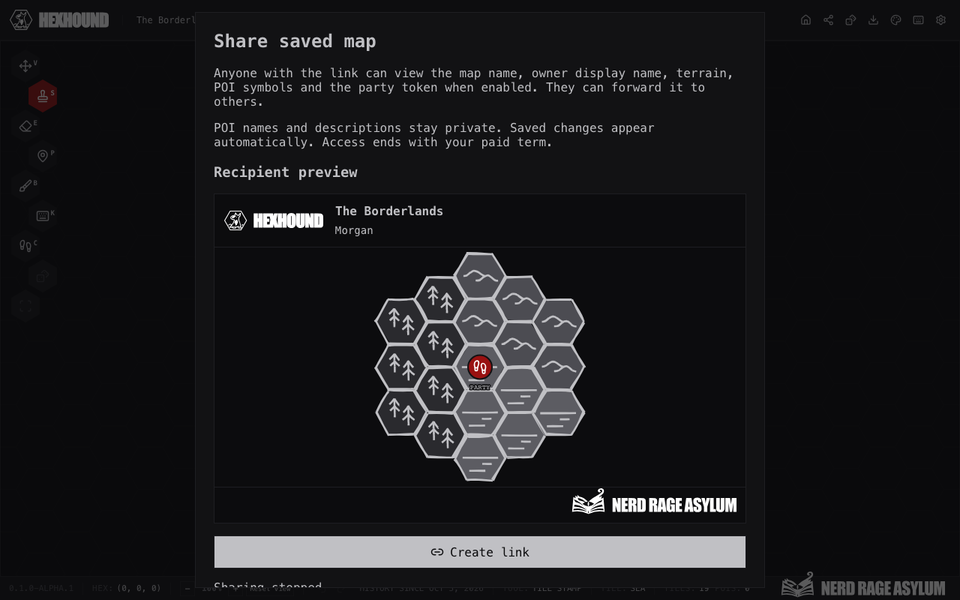
Review the recipient preview, create and copy a link, then stop sharing when you finish.
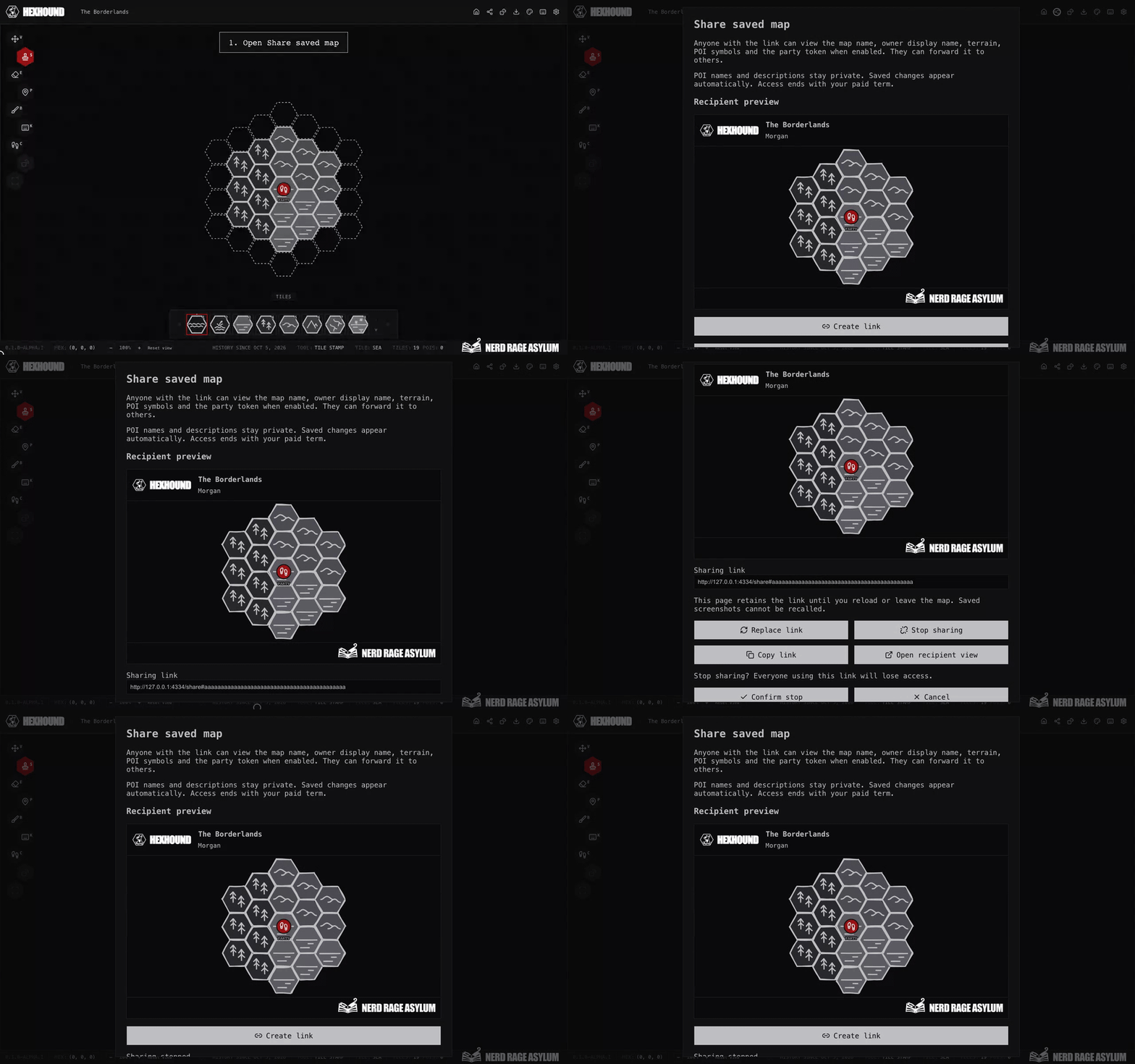
Anyone with the link can view the map and forward the link. Send it only to people you want to give access.
Each map has one active link. Creating a link starts sharing the saved map immediately.
The editor page retains the link until you reload or leave the map. Closing the dialog keeps it on that page.
After a reload, replace the link to receive a new one. The previous link then stops working.
Check what recipients see
| Shared content | What appears |
|---|---|
| Map and owner | The map name and your display name. Without a display name, recipients see Map owner. |
| Terrain and points of interest | Saved terrain and POI symbols in the map's theme. |
| Party | The saved party position when Show party token is enabled. |
| Branding | The HexHound and Nerd Rage Asylum logos. |
POI names and descriptions, your email address, and editing history stay private.
Pending edits appear in the shared view after they save. The recipient's pan position stays in place during updates.
To pan, drag the map. For keyboard controls, focus the map and use the arrow keys.
The link shows the current saved map. To keep an image of a particular moment, export a PNG.
Show or hide the party
- In the editor, enter Crawl or press C.
- Select Show party token or Hide party token, or press H.
- Wait for the visibility change to save.
This choice applies to the editor and the shared view. It is saved with the map.
Leaving Crawl keeps an enabled token visible. You can move it only while Crawl is active.
Recipients can pan over the token. They cannot select or move it.
Read the Crawl guide for party movement and exploration.
Replace a link
- Open Share saved map and select Replace link.
- Read the confirmation, then select Confirm replacement.
- Copy the new link and send it to your players.
Replacement permanently stops the previous link. Players must open the new link to continue viewing.
Replacement requires a current paid subscription, administrator access or gift access. If access is missing, Replace link opens the upgrade dialog.
Stop sharing
- Open Share saved map and select Stop sharing.
- Read the confirmation, then select Confirm stop.
The link stops working. Closing the dialog or leaving the editor alone does not stop sharing.
You can stop an active link after paid access ends. Shared screenshots and copies already saved by recipients cannot be recalled.
Understand sharing access
Subscription links end with your verified paid term. Canceling renewal keeps sharing available through that paid period.
Administrator and gift accounts can share while either grant remains active. Removing the last grant retires their links.
After access returns, create or replace a link. Previously retired links stay unavailable, even if you have a current subscription.
After a subscription change, recipients may be unable to reconnect even when paid access is current.
If reconnection keeps failing, replace the link and resend it to your players.
For subscription steps and cancellation details, read Plans and billing.
Reconnect or resolve a problem
If Disconnected. Reconnecting… appears, the page retries automatically. The map clears when access cannot be verified.
After a connection failure, the map can remain visible for up to ten seconds. It clears sooner if paid access ends.
Returning to a hidden tab checks access again before showing the map.
Reloading the recipient page removes its temporary access. Open the original copied link again.
If This shared map is unavailable appears, reopen the copied link or ask the owner for a new one.
If the owner dialog cannot confirm a sharing change, close it and reopen it before trying again.
Related guides and help
Use Saving and undo to check pending changes.
See the sharing FAQ for quick answers. If a problem continues, visit Support.
Keep sharing links and private account details out of public support posts.