

Edit terrain
Place terrain by hand, paint an area, or generate nearby hexes as you explore.
Place or replace one hex
- Select Tile Stamp, or press S in mouse mode.
- Choose terrain from the palette. Use its arrows to reach other pages.
- Click an empty hex to place terrain. Click existing terrain to replace it.
Number keys 1 to 9 and 0 select visible palette slots. The 0 key selects the tenth slot.
To reuse existing terrain, hold Alt and click its hex. This samples the biome and selects Tile Stamp.
Choose terrain variants
Open Sea in the terrain palette for Island and Reef. Open Hills for Rocky Hills, Forested Hills and Highlands.
Open Mountains for Volcano and Mountain Forest. Each variant supports stamping, brushing, sampling, saving and undo.
Island and Reef use water edges. They follow Sea's river-mouth and road rules. Rocky Hills, Forested Hills and Volcano use land edges.
These variants are available for manual editing. Automatic generation continues to use its supported terrain choices.
Paint an area
- Select Brush, or press B.
- Choose terrain from the palette.
- Set Brush size from 1 to 6. The control shows the number of hexes covered.
- Select Fill to paint empty positions. Select Replace to change existing terrain too.
- Click for one footprint, or drag across the map and release to finish a stroke.
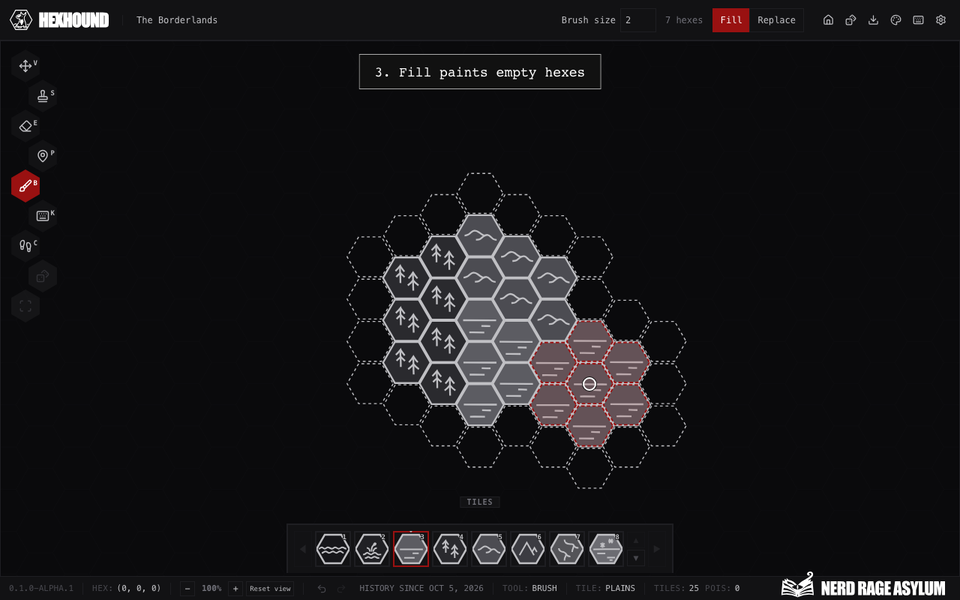
Choose terrain and a brush size, then paint an area of the map.
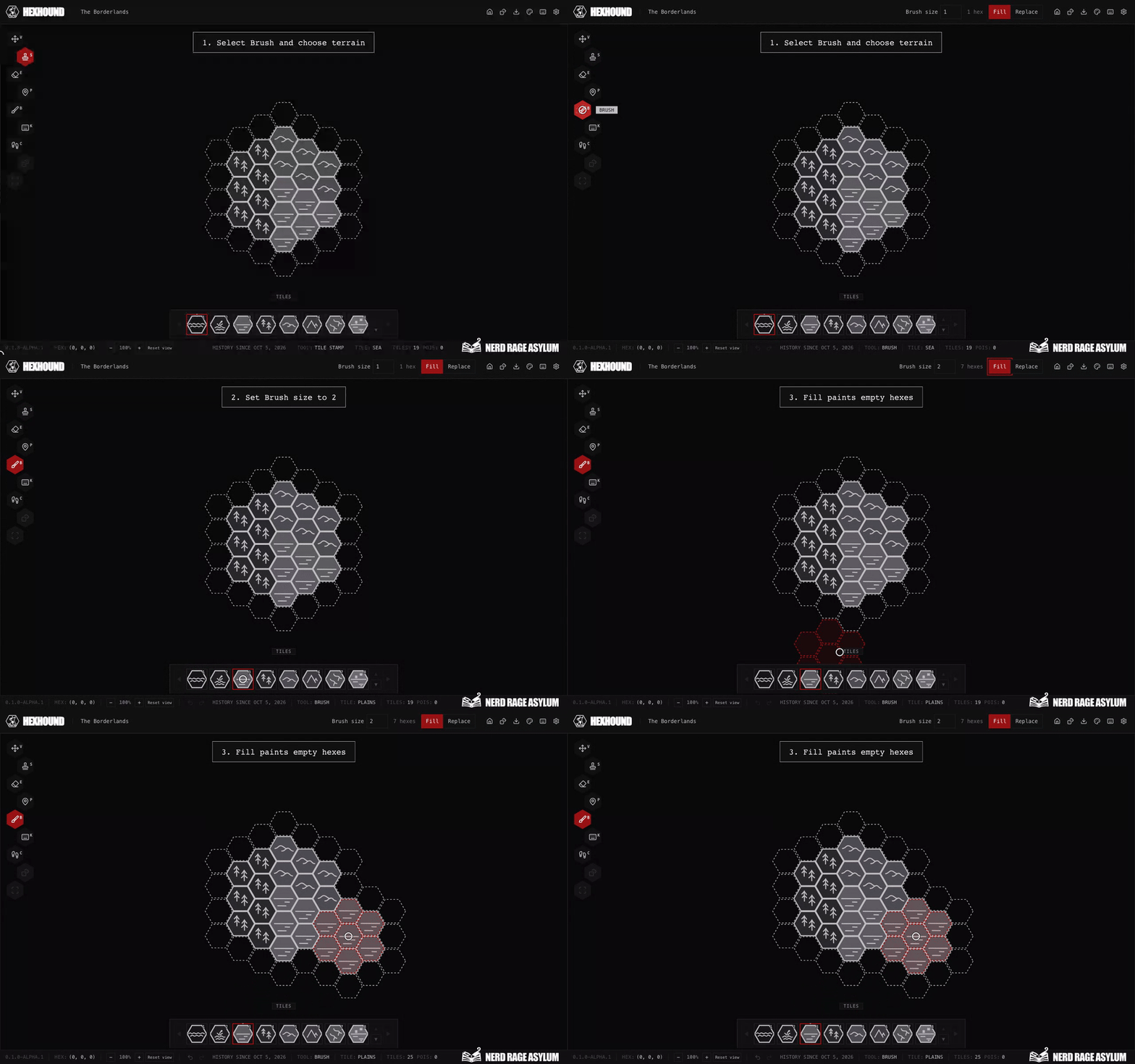
Replacing terrain preserves points of interest. Each completed stroke is one undo action.
Size 1 covers one hex; size 6 covers 91. A stroke can cover up to 1,000 distinct positions.
A larger stroke cancels. Split large areas into separate strokes.
Erase terrain
- Select Eraser. In mouse mode, you can press E.
- Set Eraser size from 1 to 6.
- Click or drag across the area to remove it.
Erasing removes terrain and its points of interest. The map's origin hex is protected.
Use Undo if you remove too much. To remove only a marker, use the POI Tool.
New Terrain: roll terrain for one hex
- Select New Terrain, or press Z in mouse mode.
- Click an empty hex.
- If Choose adjacent terrain appears, select the neighboring biome to use as the source.
New Terrain leaves an occupied hex unchanged. With no nearby terrain, the generator chooses the starting terrain.
If the generator cannot use existing terrain, Choose source terrain offers supported choices. Cancel leaves the map unchanged.
Explore around a hex
- Select Explore, or press X in mouse mode.
- Click the center of the area you want to reveal.
- Choose a source terrain if prompted.
Explore fills empty positions at the center and its six neighbors. Existing terrain stays in place.
In Keyboard Edit, R and X act at the cursor. In Crawl, they act at the party.
Wait for pending edits to save before using New Terrain or Explore. A disabled control explains why it is unavailable.
Continue mapping
Use map generation for a larger starting area, or Crawl to reveal terrain while moving.
See keyboard controls and saving and undo.
Read about road editing for connected paths and roads. Terrain changes that damage rivers or roads require confirmation. Undo restores the terrain and affected routes together.
Name geographical features with Toponyms
Select Toponyms in the toolbar, or press T. Choose Line or Point. Both modes work on every terrain type.
Line: draw a label path
Click a starting tile, then a distant tile. Toponyms fills the shortest direct hex path between them.
You can also hold the pointer down and brush across tiles. Fast strokes fill skipped tiles automatically.
Both gestures create the same editable path through tile centres. Use it to name a mountain range, lake, sea or valley.
A label path supports up to 100 tile centres. Split longer names across separate paths.
The path positions the text. It creates no terrain or route. Select an existing path to open its label settings and reshape it.
Red paths appear while Toponyms is active. Select another tool to hide the paths and keep the names visible.
Point: name an existing item
Click a tile, POI, road or river. When items overlap, choose the intended item in the settings panel.
The panel uses the item's existing name. Road and river names keep their placement along the route.
Delete name clears the label and keeps the map item. Existing mountain names remain editable in Point mode.
Edit label appearance
The panel opens when you select a label or item. The map centres the selection in the space beside the panel.
Changes preview immediately and save after two seconds of idle time. If saving fails, keep the draft and select Retry.
Roads, Rivers and Toponyms share label controls. Font size, letter spacing, colour and placement apply to every label.
Line labels also offer Follow line, smoothing and Gentle arc. Point labels use horizontal position and vertical distance.
Font halo thickness controls the outline around each letter. Set it to 0 to remove the outline.
Background tag adds a separate solid background behind the name. Its padding and colour do not change the font halo.
Colours inherit the map theme until overridden. Use the theme colour buttons or Reset label appearance to remove overrides.
Names support undo and redo. Existing saved names retain their styling. PNG exports include visible names without editing guides.
Existing shared-map visibility rules still apply. Editing guides remain hidden in read-only views.