

Add points of interest.
Points of interest mark settlements, landmarks, and other locations on terrain.
Place a marker
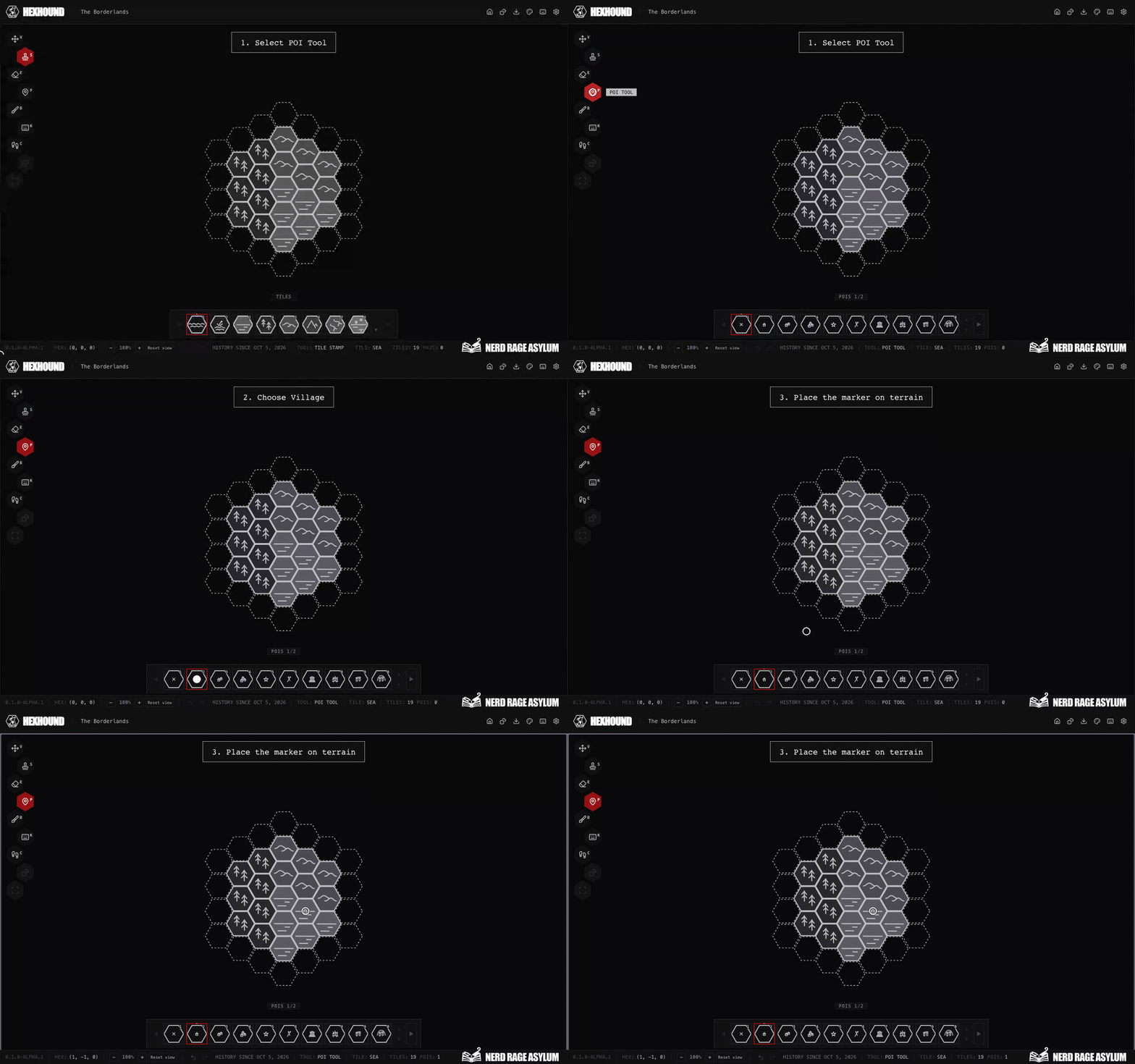
- Place terrain on the destination hex with Tile Stamp.
- Select POI Tool or press P.
- Choose a marker from the palette. Use Next page for more choices.
- Click the terrain hex to place it.
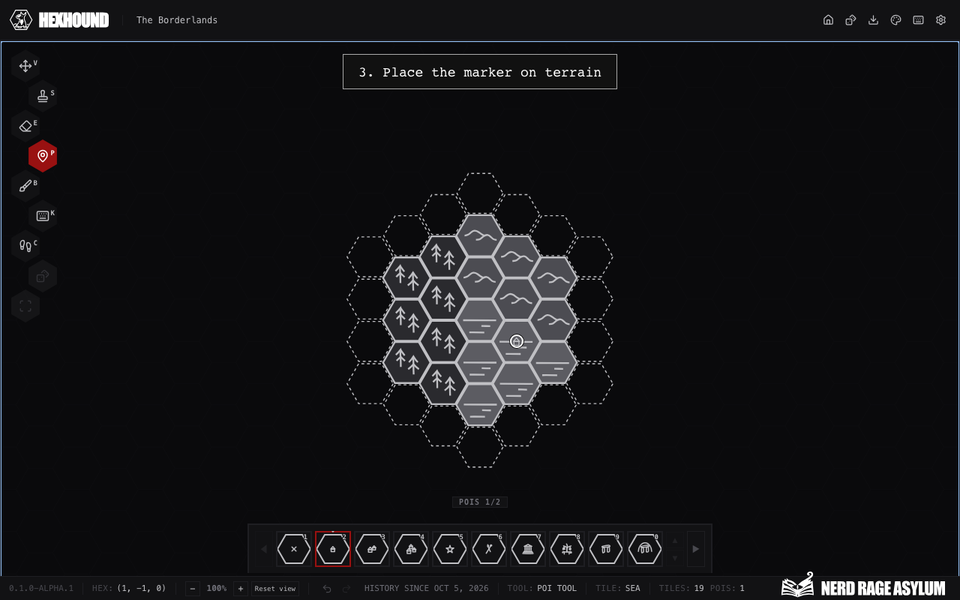
Choose a point of interest and place it on terrain.
Each hex displays one point of interest. Placing another marker on that hex replaces the existing marker.
A marker on an empty hex cannot be placed. The editor asks you to place a tile first.
Available markers
The palette includes Village, Town, City/Metropolis, Natural Landmark, Hermit's Abode, Temple, Holy Shrine, Ancient Dolmens, Barrow Mounds, Fortified Keep, Small Tower, Cave Formation, Monster Nest, Barbarian Camp, and Ravine.
Name a marker
Select Toponyms, choose Point, then click the marked hex. Select the POI when the item chooser appears.
Edit its existing name and appearance in the label panel. Changes preview immediately and save after two seconds.
Delete name keeps the marker. See Point label controls.
Remove a marker
- Select POI Tool.
- Choose Remove POI in the palette.
- Click the marked hex.
Remove POI keeps the terrain. Eraser removes both the terrain and its marker.
Use Undo to reverse a placement, replacement, or removal.
Export your locations
Visible markers appear in the PNG export.