

Change themes and appearance.
Choose a default appearance for the app and a separate theme for each map.
Set your default theme
- Open Settings outside the map editor.
- Set General appearance to Saved default theme.
- Choose a Default Theme.
The app uses this theme when you leave a map.
Set a map theme
- Open the map and select Settings.
- Choose a Theme, or select Use Default to follow your saved default.
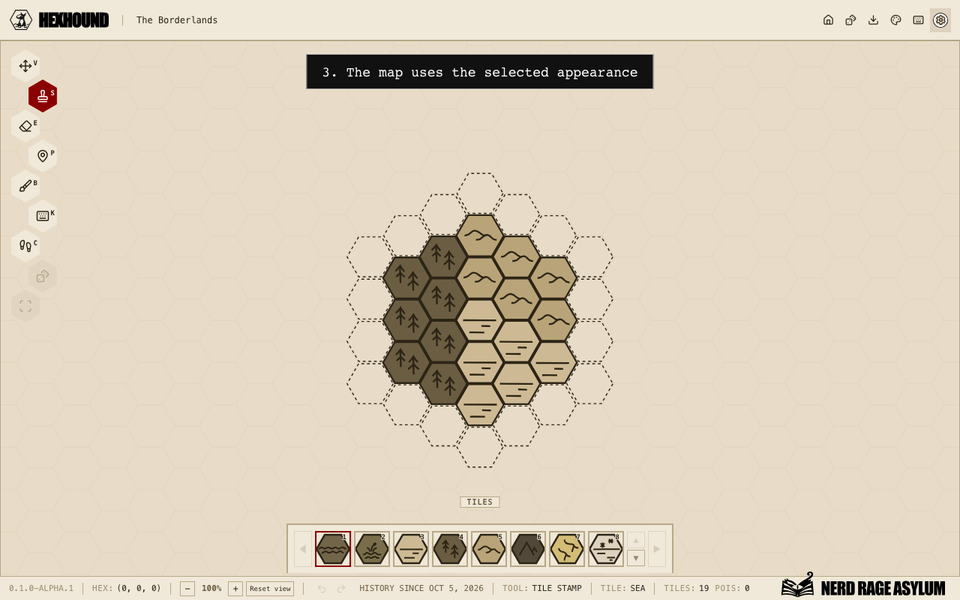
Open map settings and choose a theme for the map.
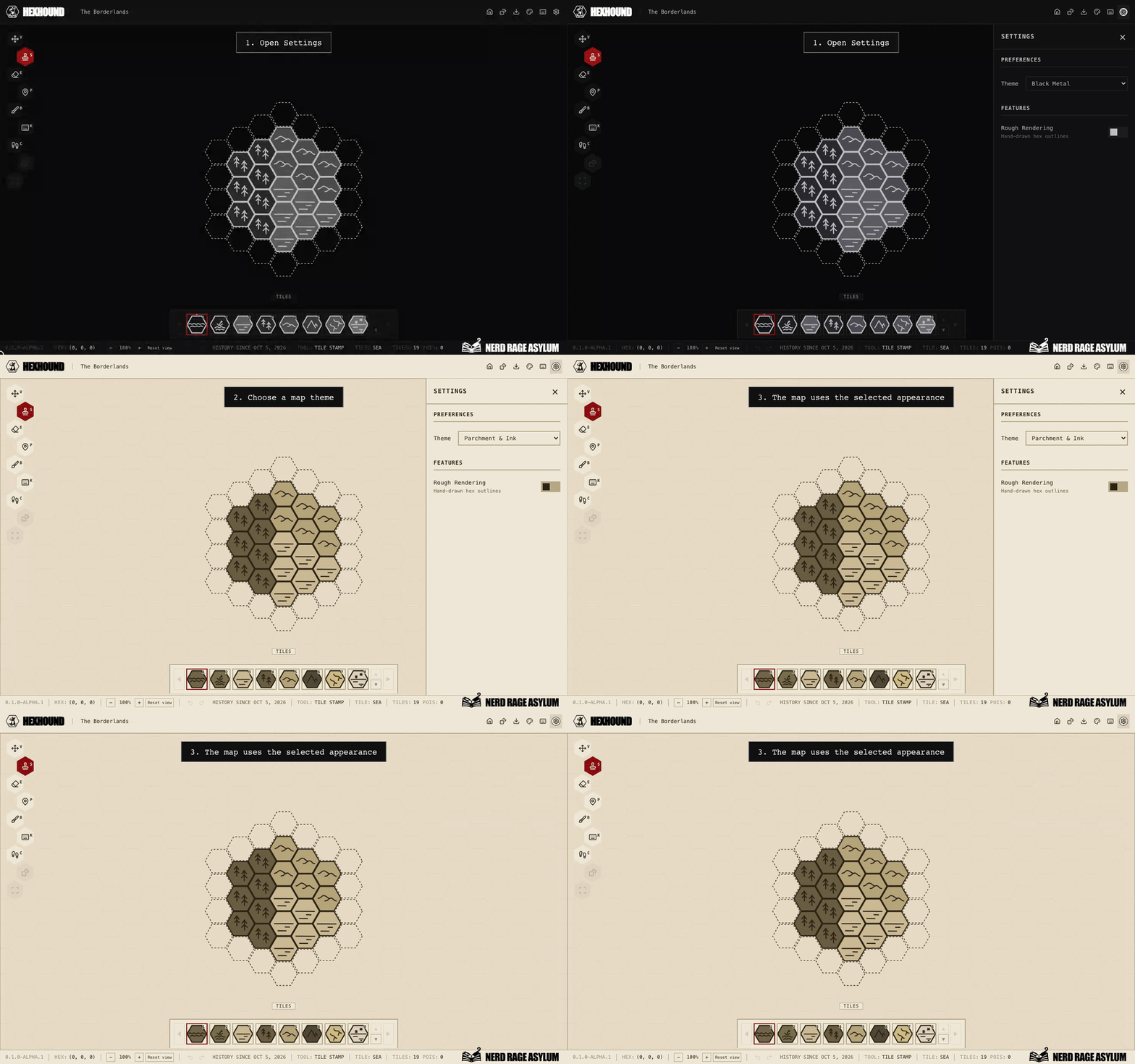
The Cycle theme button provides a quick way to browse appearances in the editor.
Your current map appearance is included in PNG exports.
Follow the last map
Set General appearance to Zoomies mode to make the app follow the last map you opened.
Palette changes last until you open another map. Your saved default remains unchanged.
Choose map preview appearance
In Settings, set Map previews to Each map's theme to show saved map themes on the dashboard.
Choose Zoomies mode to display every preview in the app's current appearance. This does not change saved map themes.
Set road line colours
Open Settings in a map and find Default road colour under Map roads. It applies to roads and paths without their own colour.
Use theme road colour restores the map default. To change one road, choose it in Road settings and change Line. Use map default removes that road’s override.
Changes appear immediately and save after two seconds of idle time. Saved colours appear in map previews and PNG exports.
Use hand-drawn outlines
In Settings, find Features and enable Rough Rendering for hand-drawn hex outlines. Turn it off to return to regular outlines.